top of page

Jonah
Game Design
Chapter 4: Basic Game Flow - Scripting (Part 1)
It is important to have some sort of framework in mind when trying to develop a game. As a game designer, there is more to it than just the game's mechanics. A proper flow in the game is required.
This write up introduces to a basic game flow or structure of a game that may be considered. Throughout this write up, we will also explore how we can use a common tool, such as Microsoft Excel to create a simple prototype using some basic knowledge in Visual Basic scripting.
----------------------------------------------------------------------------------------------------------------------------
Another additional reason why I chose Microsoft Excel's in built Visual Basic Editor and the scripting language is that it is simple enough to understand and the documentation and tutorials available are rather easy to find. Although the application might not be as robust as an actual game engine. I felt that it was an essential tool for someone who does not have any technical skills and is willing to learn some basic concepts in scripting. I will try my best to explain what each script does in detail and will provide you with links for a better explanation for those who are interested in knowing more.
Scripting
To begin scripting, we will need to bring back up the flow chart we created for our basic game flow.
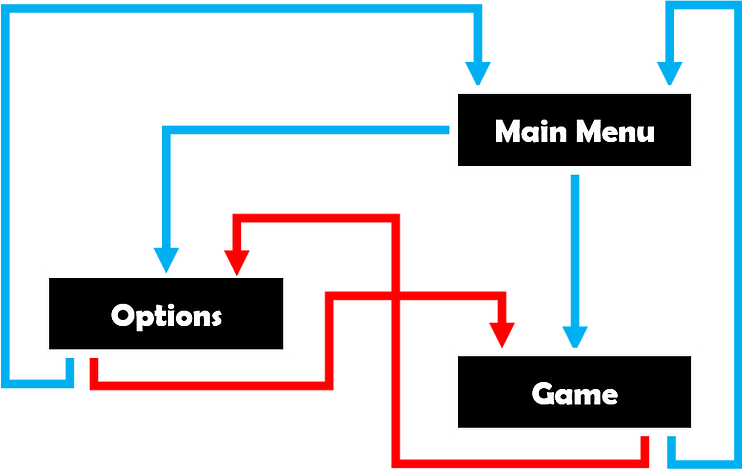
From the chart, starting from the "Main Menu Screen", we have two options, and that is to go to either the "Game Screen" or the "Options Menu Screen". Now with this in mind, we can start scripting.
On the MainMenu UserForm, double click on the Start button, a coding/scripting panel will pop up as seen. Let us do a quick run down on the code seen and the meanings of the keywords for a start for those who may not have any coding/scripting experience.
Private - this is a specific that can only be accessed within in the MainMenu UserForm. This means in this case, that if you want to access code from within the MainMenu UserForm, you are are unlikely to do so. (more info)
Sub - this can be considered to be a type of function that carries out a set of instructions that are in between the Sub and End Sub keywords (more info)
Button_Start_Click - the button you named and the action associated with the button,in this case, when the button is clicked once.
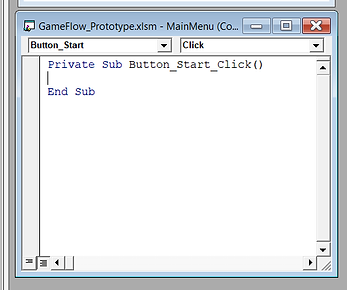
Now that we have a basic understanding of the script above and we also know what we want to achieve when this Start button is clicked once, we can script up the functionality of this. In simple English, in a full sentence, what I basically want to do is:
"When I click the start button, I want to start the game."
Using this sentence structure, we have a rough idea of what we want to achieve. What we want to really do is change/transit to the "Game Screen" when the Start button is pressed. So, in Visual Basic (VB) language terms, we want to show the Game UserForm. As such, the script that is needed within as seen in the screenshot below.
Game - the name of the user form as indicated. We add the "." as we are trying to access the properties,in code of the Game UserForm. And one of those properties is Show
Show - what this does is allows the Game UserForm to be made available visually for interaction by the user

Thus, in the end, with this added script, we now end up with something like this when we run (F5) the code with the MainMenu UserForm as our starting point based on our flow chart.
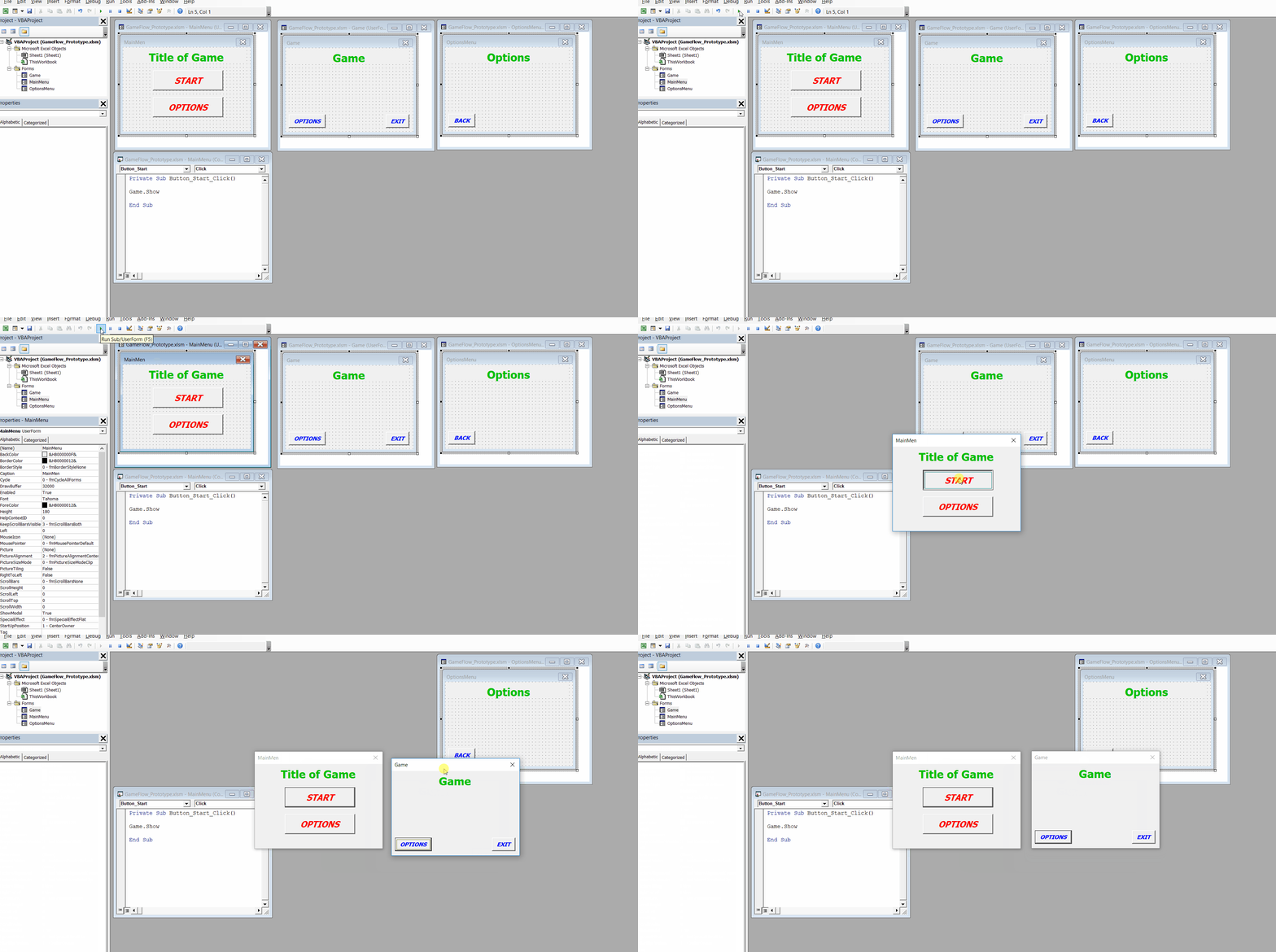
However, there is a slight issue with our script. It does not get rid or hide the MainMenu UserForm when the Game UserForm is the active "Screen".To do this, we will need to add an extra line of script which will be illustrated in the next chapter.
bottom of page